Deploying PDP on GCP Cloud Run
Our PDP image runs on GCP Cloud Run without any modification. You can deploy it by using our public image on Docker Hub.
Step by step guide
In the following step, we will show you how to deploy our PDP image on GCP Cloud Run, And in the end we'll share the final YAML file that you can use to deploy the PDP on GCP Cloud Run.
1. Create a new Cloud Run service
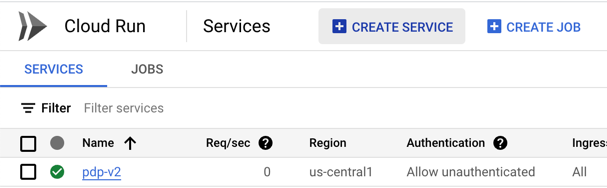
Create a new Cloud Run service by clicking on the Create Service button in the Cloud Run dashboard.
2. Configure the service
Now, we'll set the name, image and some other configurations for the service.
First, in the "Container Image URL" field, enter the following image permitio/pdp-v2:latest.
Then, set the name of the service to the name that fits you.
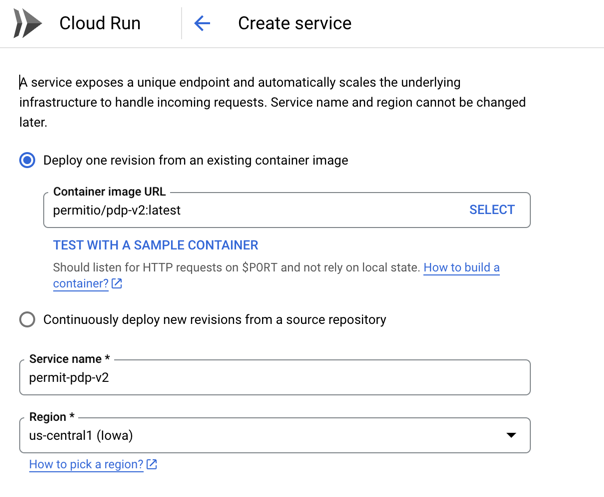 Obviously, you can change the region and other configurations as you wish.
3. Adjust the Auto Scaling configuration (Recommended)
In the "Auto Scaling" section, set the "Minimum number of instances" to 1.
This will make sure that there is always at least one instance of the PDP running - to avoid cold starts.
We don't want that authorization queries and requests to the PDP will fail or take a long time because of cold starts.

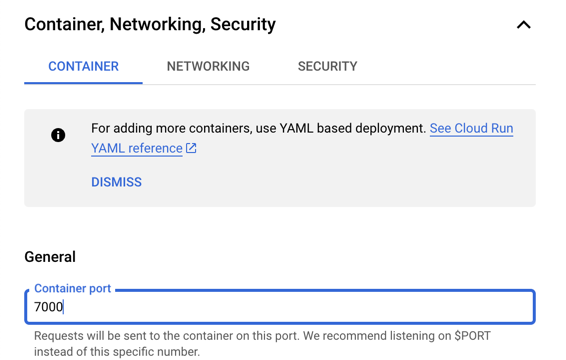
4. Set the container port
Our PDP image runs on port 7000, so we need to set the container port to 7000.
5. Set the environment variables
Now, we need to set the environment variables for the PDP.
The only required environment variable is PDP_API_KEY, which is the API key that you got from Permit.io.
See Get your API Key for more information.
Note that you can and should set the environment variables from a secret, using your selected secret store provider.
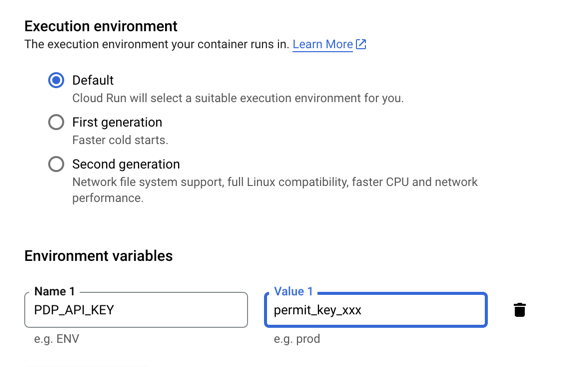
Use an Environment-level API key (not Project or Org key) for Cloud Run deployments
6. Ready to deploy !
Now, we are ready to deploy the PDP.
Click on the "Create" button to deploy the PDP.
You can see the logs of the deployment in the "Logs" tab, and if the deployment succeeded, you will see the URL of the PDP in the top section of the Cloud Run service.

A common misconfiguration issue that can be encountered when deploying the PDP to Google Cloud Run is having the platform unexpectedly terminate the PDP container with a Signal 6 (SIGABRT). This issue stems from Cloud Run's CPU allocation settings, which allow background task processes, such as the PDP, to release CPU resources when idle. Consequently, this results in the container's termination due to insufficient CPU availability.
To address this issue and ensure uninterrupted service, we recommend adding the run.googleapis.com/cpu-throttling: false annotation in the YAML configuration.
For a deeper understanding of CPU allocation settings in Cloud Run and how they impact your applications, please refer to the following documentation: Cloud Run CPU Allocation Settings.
YAML file
We shared the YAML file that we used to deploy the PDP on GCP Cloud Run. Take a look at the following Deployments Github Repository
Known-Good Reference Deployment (YAML / CLI)
The following configuration is known to work on Cloud Run and addresses autoscaling, CPU throttling, startup probes, and environment variables appropriately.
Prerequisites
- gcloud installed and authenticated
- Cloud Run and Secret Manager APIs enabled
- Permit Environment API Key stored in Secret Manager
Step 1 — Enable Required APIs
gcloud services enable secretmanager.googleapis.com
gcloud services enable run.googleapis.com
Step 2: Create a Secret for the API Key
Store your Permit API key securely in GCP Secret Manager:
echo -n "YOUR_PERMIT_API_KEY" | gcloud secrets create permit-pdp-api-key \
  --data-file=- \
  --replication-policy=automatic
Step 3: Grant Secret Access to the Service Account
Get your default compute service account and grant it access to the secret:
# Get the service account email
SERVICE_ACCOUNT=$(gcloud iam service-accounts list --format="value(email)" | grep compute)

# Grant secret access
gcloud secrets add-iam-policy-binding permit-pdp-api-key \
  --member="serviceAccount:${SERVICE_ACCOUNT}" \
  --role="roles/secretmanager.secretAccessor"
Step 4: Create the Cloud Run Service YAML
Create a file named permit-pdp-service.yaml:
apiVersion: serving.knative.dev/v1
kind: Service
metadata:
  name: permit-pdp
  labels:
    cloud.googleapis.com/location: us-central1
  annotations:
    run.googleapis.com/client-name: cloud-console
    run.googleapis.com/ingress: all
    run.googleapis.com/ingress-status: all
spec:
  template:
    metadata:
      labels:
        run.googleapis.com/startupProbeType: Default
      annotations:
        run.googleapis.com/cpu-throttling: "false"
        run.googleapis.com/client-name: cloud-console
        autoscaling.knative.dev/minScale: "1"
        autoscaling.knative.dev/maxScale: "10"
    spec:
      containerConcurrency: 80
      timeoutSeconds: 300
      serviceAccountName: YOUR_SERVICE_ACCOUNT_EMAIL
      containers:
        - image: permitio/pdp-v2:latest
          ports:
            - name: http1
              containerPort: 7000
          env:
            - name: PDP_API_KEY
              valueFrom:
                secretKeyRef:
                  key: latest
                  name: permit-pdp-api-key
          resources:
            limits:
              cpu: 1000m
              memory: 512Mi
          startupProbe:
            timeoutSeconds: 240
            periodSeconds: 240
            failureThreshold: 1
            tcpSocket:
              port: 7000
  traffic:
    - percent: 100
      latestRevision: true
Important Configuration Notes:
| Setting | Value | Purpose |
|---|---|---|
run.googleapis.com/cpu-throttling | "false" | Prevents SIGABRT errors by keeping CPU allocated |
autoscaling.knative.dev/minScale | "1" | Avoids cold starts that cause authorization failures |
containerPort | 7000 | Default PDP port |
startupProbe.timeoutSeconds | 240 | Allows time for initial policy sync |
Step 5: Deploy the Service
gcloud run services replace permit-pdp-service.yaml --region=us-central1
Step 6: Allow Public Access (Optional)
If you need unauthenticated access to the PDP:
gcloud run services add-iam-policy-binding permit-pdp \
  --region=us-central1 \
  --member="allUsers" \
  --role="roles/run.invoker"
Step 7: Verify the Deployment
Check the health endpoint:
# Get the service URL
SERVICE_URL=$(gcloud run services describe permit-pdp --region=us-central1 --format="value(status.url)")

# Check health
curl ${SERVICE_URL}/health
Expected response:
{
  "components": {
    "horizon": {
      "details": {
        "direct_check": "success",
        "watchdog": "error"
      },
      "error": null,
      "status": "ok"
    },
    "opa": {
      "error": null,
      "status": "ok"
    }
  },
  "status": "ok"
}
Endpoints
Once deployed, your PDP exposes:
- Health Check:
https://YOUR_SERVICE_URL/health - Authorization:
https://YOUR_SERVICE_URL/allowed
Troubleshooting:
Signal 6 (SIGABRT) Errors
Ensure run.googleapis.com/cpu-throttling: "false" is set in your annotations.
Cold Start Authorization Failures
Ensure autoscaling.knative.dev/minScale: "1" to keep at least one instance running.
Quota Errors
Reduce autoscaling.knative.dev/maxScale if you hit CPU/memory quota limits.